Saturday, 12 September 2015

Arduino With GPS SKM53

    GPS WITH ARDUINO MEGA 2560

Sebarang pertanyaan/pembelian/bantuan boleh dm saya dia twitter eh:


1. Where to buy this SKM53 GPS ?


Memang dari kedai beli SKM53 ni akan dapat cam ni je. Kaki dia tak ngam dengan breadboard & jumper cable. Kena beli jumper cable lain sikit dari biasa.


So, i solder this component with jumper cable.


This how to connect SKM53 to Arduino


VCC >  +5V
Gnd > Gnd
TX > digital pin 10
RX > digital pin 11

Lets go to the next steps.


Software

In this test i use TinyGPS and SoftwareSerial library. I've make a little bit changes with original code to make user easier to search their current position in Google Map.


Download Link

TinyGPS Library

Arduino Code


Arduino Code

Just copy and paste this code! Make sure you have added TinyGPS library first.
Check my older post (under ultrasonic sensor post) for tutorial adding library to Arduino IDE!


#include <SoftwareSerial.h>
#include <TinyGPS.h>   //include library

long lat, lon;

SoftwareSerial gpsSerial(10, 11);  //connect Tx and Rx pin on digital 10 and 11
TinyGPS gps;

void setup() {
  Serial.begin(9600);    //baud rate with serial monitor
  gpsSerial.begin(9600);  //GPS baud rate
}
void loop() {
  while (gpsSerial.available()) {      ///kalau GPS available, Arduino akan mula read
    if (gps.encode(gpsSerial.read()))  ///Encode signal dari GPS
    {
      gps.get_position(&lat, &lon);     ///lepas Arduino encode signal GPS, baru akan dapatkan global position
      float real_lat = (lat/1000000.000);   //divide by 1m to make user easier to get their current global postion
      float real_lon = (lon/1000000.000);
      Serial.print("google: ");
      Serial.print(real_lat);   //print latitude on Serial monitor (in two decimal places)
      Serial.print(", ");
      Serial.println(real_lon); //print longitude on serial monitor (in two decimal places)
      //////////////////////////////////////////////////////////////////////////////////////////////////
      Serial.print("Position: ");
      Serial.print("lat: ");
      Serial.print(lat);
      Serial.print(" ");
      Serial.print("lon: ");
      Serial.println(lon);
    }
  }
}


Code Explaination


#include <TinyGPS.h> 
-include TinyGPS library.

SoftwareSerial gpsSerial(10, 11);
-communication between arduino and skm53 on pin digital 10 and 11.

Serial.begin(9600);    
-baud rate with serial monitor

gpsSerial.begin(9600);
-GPS baud rate

while (gpsSerial.available())
-check if GPS available

if (gps.encode(gpsSerial.read()))
-encode GPS signal

gps.get_position(&lat, &lon);
-get the position

 float real_lat = (lat/1000000.000);
-convert latitude in two decimal places to make user easier search their curent global postion

 float real_lon = (lon/1000000.000);
-convert longitude in two decimal places to make user easier search their curent global postion

Serial.print(real_lat);
-print latitude on serial monitor

 Serial.println(real_lon);
-print longitude on serial monitor

Ultrasonic Sensor HC- SR04 And How To Add Library To Arduino

Ultrasonic Sensor(HC-SR04)
Measure Distance/Detect Any Motion

Sebarang pertanyaan/pembelian/bantuan boleh dm saya dia twitter eh:
twitter.com/zakimuslim_

Based on my experience, this sensor need a good reflector to get better result. Reflector must be:
-Flat
-Hard
And size of the reflector must be bigger than this sensor size. It help sensor receive reflected signal better.


This how Ultrasonic sensor looks

VIDEO

i recommend watch this video on youtube for better quality:
https://www.youtube.com/watch?v=hCmmrtMHlVw&feature=youtu.be


Hardware Setup


This how to connect HC-SR04 Ultrasonic sensor to Arduino


How to measure the distance(cm) using Ultrasonic sensor using Arduino.

1. First of all you need to download the library for this sensor first.
   You can download here;

 https://drive.google.com/open?id=0B3c_VPBO9Qq3eWIyNi1maWN6R1U

This library can help you to get more  accurate measurement and also can make your program easier. But you need to add this library first before you can upload the program.


2. How to add library to Arduino 

-download the library and unzip the zip item.


-copy & paste the unzip item to desktop


-open Arduino IDE and click on "include library", then click on "Add .Zip Library.."


-then select the folder that tou have move to dekstop.


-once you click open, you succesful to add the library to Arduino. You can check the library by click on Sketch > Inculde Library. Then you can see the folder "New Ping"


3. Now you ready to upload the program.

    Here link to download the program:


   or you can just copy and paste this code to your ide


#include <NewPing.h>

#define TRIGGER_PIN   12 //trigger pin kat arduino 12
#define ECHO_PIN      11 //echo pin kat arduino 11
#define MAX_DISTANCE 80 //set jarak maksimum

int led = 7;
NewPing sonar(TRIGGER_PIN, ECHO_PIN, MAX_DISTANCE); 

unsigned int pingSpeed = 50; //speed bacaan ping
unsigned long pingTimer;     

void setup() {
  Serial.begin(115200); 
  pingTimer = millis(); // Start now.
  pinMode(led, OUTPUT);
}

void loop() {

  if (millis() >= pingTimer) {   // pingSpeed milliseconds since last ping, do another ping.
    pingTimer += pingSpeed;      // Set untuk ping seterusnya.
    sonar.ping_timer(echoCheck); // Keluarkan ping seterusnya, call balik function echoCheck
  }
  int reading = (sonar.ping_result / US_ROUNDTRIP_CM); //tukar nama kepada bacaan
  if(reading <= 21)
  {
    digitalWrite(led, HIGH);
  }
  else
  {
    digitalWrite(led, LOW);
  }
}

void echoCheck() { //Check Timer2 kalau ada interrupt 
  
  if (sonar.check_timer()) { // check ping yang diterima setiap 24uS
    Serial.print("Ping: ");
    Serial.print(sonar.ping_result / US_ROUNDTRIP_CM); //tukar bacaan US_ROUNDTRIP_CM kedalam centimeter
    Serial.println("cm");
    int reading = (sonar.ping_result / US_ROUNDTRIP_CM);
    
  }
}


4. Sensor Reading

- To see the sensor reading you can press ctrl + shift + m  or click on serial monitor icon at the top left.
- I've make a little modification to the code. You can see the distance in "cm" at serial monitor.


5. Code explaination


#include <NewPing.h>
-Include the library. Tell arduino that youre using "NewPing" library.


#define TRIGGER_PIN   12 //trigger pin kat arduino 12
-use pin12 as trigger pin

#define ECHO_PIN      11 //echo pin kat arduino 11
-tell arduino pin11 is echo pin

#define MAX_DISTANCE 80 //set jarak maksimum
-set the maximum distance that youre need. I set it at 80cm

  Serial.begin(115200); 
-set baud rate at 115200. I use Arduino Mega 2560 so the baud rate is 115200. If youre using Arduino Uno set it at 9600.
  pingTimer = millis(); // Start now.
-set timer in milisecond

  pinMode(led, OUTPUT);
-set led pin as output. I use LED as output in this test.

  if (millis() >= pingTimer) {   // pingSpeed milliseconds since last ping, do another ping.
    pingTimer += pingSpeed;      // Set untuk ping seterusnya.
    sonar.ping_timer(echoCheck); // Keluarkan ping seterusnya, call balik function echoCheck
  }
-dont make any change at this if dont know what is this.


  int reading = (sonar.ping_result / US_ROUNDTRIP_CM); //tukar nama kepada bacaan
  if(reading <= 21)
  {
    digitalWrite(led, HIGH);
  }
  else
  {
    digitalWrite(led, LOW);
  }
}

-if distance between sensor and reflector equal and less than 21cm, led is ON. If distance more than 22cm, led will turn OFF.


void echoCheck() { //Check Timer2 kalau ada interrupt 
  
  if (sonar.check_timer()) { // check ping yang diterima setiap 24uS
    Serial.print("Ping: ");
    Serial.print(sonar.ping_result / US_ROUNDTRIP_CM); //tukar bacaan US_ROUNDTRIP_CM kedalam centimeter
    Serial.println("cm");
    int reading = (sonar.ping_result / US_ROUNDTRIP_CM);
    
  }
}

-void to check the echo.


5. Download Link


Control RC Toys Using Your Smartphone!

       Control RC Car Using Your Smartphone!

Sebarang pertanyaan/pembelian/bantuan boleh dm saya dia twitter eh:

Assalamualaikum.. Hi guys! today i gonna tell you how to control RC car using Smartphone!


Okay, first of all we need to know the signal from smartphone transmit to your RC car. As we know, Arduino is very powerful microcontroller. Its easy to use, and widely use in engineering field. Lets check on Arduino board, we can see "TX" and  "RX" pin. We can see it on pin 0 and pin 1. So what? hahaa! Its communication pin! means we can communicate with an Arduino board! We can transmit and receive the data from Arduino. but how?

We need another device to help Arduino receive the data. We can use USB cable, Bluetooth receiver, Wifi shield and so on to help arduino receive the data/signals.


This is how HC06 looks..


In this case, we gonna use HC06 Bluetooth receiver to communicate with Arduino wirelessly. We can buy it from 


We also can get it from any hobby shop. Its price depends on quality and use. Some model just can receive or transmit data and some model can receive and transmit the data.


Now i gonna show you how to use this device with Arduino.

First we should know how to connect these four pin to Arduino
Vcc --- Connect to 5V pin on Arduino
Gnd --- Connect to Gnd pin.
RX --- Connect to TX pin!
TX --- Connect to RX pin!

Like this...


Make sure connect RX to TX !!


Okay now lets talk about how to hack the RC Car!

First of all you need to open your old RC car body.


You can see PCB with many component. Its motor driver and RF receiver. It mess you up? Relax. Just cut the wire that connect to the DC motor. Like this.


Now have 4 wires left on your old RC car. Its wire to control DC motor. Now we need another motor driver that can operate with Arduino. In my case, i use MD10 Cytron motor driver. Why do not use the old motor driver to drive the motor? it can make your circuit more complicated than you expected. This is MD10 Cytron motor driver shield that compatible with Arduino board. its easy to use!

https://docs.google.com/document/d/1acVuzZKuqC_79RzD5BRT9IQ7ug63zG0wpf-bUgQ7QHY/view


MD10 Cyrton Motor Driver


From the picture above, you can see PWM and DIR with pin D1, D2, D3, D4 and so on. Its means the digital pin that we can use for control speed of the motor(PWM) and direction of the motor rotation(DIR).

example;
in Arduino..

analogWrite(D5, 230);         //motor speed at 230
digitalWrite(DIR, HIGH);   //motor will rotate in clockwise


Its really easy to use. Just connect two DC motor wire to channel A and B. Then, connect power supply cable at +ve and -ve connector.

After that, stack them on your Arduino board. Like this.


                                                                                    MD10

Arduino Uno ----->>


Watch this video for more details step!


This is Arduino Code that i use to run my RC car. You can copy and paste. Modify it if needed :)


int pwmr = 3;      
int pwml = 5;     //use to control left motor's speed
int dirr = 2;        //control direction right DC motor
int dirl = 4;        
int nilaipwm;    //speed of DC motor


char val;
void setup() {
  Serial.begin(9600);         //baud rate
  pinMode(pwmr, OUTPUT);  //set pin to output mode
  pinMode(pwml, OUTPUT);
  pinMode(dirr, OUTPUT);
  pinMode(dirl, OUTPUT);
}


void loop() {
  if(Serial.available() > 0){         //if connection is available.
    val = Serial.read();                 //val adalah character yang COM receive
    Serial.println(val);


    if(val == '1'){                        //  '1' is data transmitted by your smartphone
      nilaipwm = 10;
    }
    
    else if(val == '2'){                  //kelajuan dc motor adalah 30
      nilaipwm = 30;
    }

    else if(val == '3'){
      nilaipwm = 50;
    }

    else if(val == '4'){
      nilaipwm = 70;
    }

    else if(val == '5'){
      nilaipwm = 90;
    }

    else if(val == '6'){
      nilaipwm = 120;
    }

    else if(val == '7'){
      nilaipwm = 160;
    }

    else if(val == '8'){
      nilaipwm = 180;
    }

    else if(val == '9'){       
      nilaipwm = 220;
    }

    else if(val == 'q'){                     //if your smartphone send 'q' , car will be move at highest speed
      nilaipwm = 255;
    }

    else if(val == 'D'){                   //  'D' untuk stop kan kereta
      nilaipwm = 0;
    }

    
   else if(val == 'F'){                               //Forward
      analogWrite(pwmr, nilaipwm);
      analogWrite(pwml, nilaipwm);
      digitalWrite(dirr, LOW);
      digitalWrite(dirl, LOW);
      delay(20);
      stopp();
    }
    
    else if(val == 'B'){                          //backward
      analogWrite(pwmr, nilaipwm);
      digitalWrite(dirr, HIGH);
      analogWrite(pwml, nilaipwm);
      digitalWrite(dirl, HIGH);
      delay(20);
      stopp();
    }

    else if(val == 'L'){                              //left
      analogWrite(pwmr, nilaipwm);
      digitalWrite(dirr, LOW);
      analogWrite(pwml, nilaipwm);
      digitalWrite(dirl, HIGH);
      delay(20);
      stopp();  
    }

    else if(val == 'R'){                             //right
      analogWrite(pwmr, nilaipwm);
      digitalWrite(dirr, HIGH);
      analogWrite(pwml, nilaipwm);
      digitalWrite(dirl, LOW);
      delay(20);
      stopp();  
    }
  }
}

void stopp(void){                     //void to stop the car
  analogWrite(pwmr, 0);
  analogWrite(pwml, 0);
  
  }


Explaination

int pwmr = 3;
tell arduino that i use pin3 to control speed DC motor on right side.
int dirl = 4;
tell arduino, i use pin4 to control direction of left DC motor.

Serial.begin(9600);
speed of communiction data transmit and receive

Serial.available() > 0
If port receive any signal/data more than 0

val = Serial.read();
"val" is variable that hold data transmitted by your smartphone in string

else if(val == 5)
if serial receive data '5' , arduino will tell motor driver to speed up motor speed at 90

else if(val == 'F')
if serial read is equal to 'F' , car will move forward.


Download Smartphone App & Arduino Code

Arduino Code
https://drive.google.com/file/d/0B3c_VPBO9Qq3SkNLNndKUEU0WFU/view?usp=sharing

Smartphone App
https://play.google.com/store/apps/details?id=braulio.calle.bluetoothRCcontroller&hl=en


Friday, 11 September 2015

Speed & Direction of DC Motor - L293D Motor Driver With Arduino

Sebarang pertanyaan/pembelian/bantuan boleh dm saya dia twitter eh:
twitter.com/zakimuslim_

Maybe this post can help you how control your DC motor rotation and speed!

In this post i have write 2 basic code and circuit. First, control the motor by using delay and second, by using potientio meter.

 i use L293D (IC) motor driver, Arduino Mega 2560, small DC motor, and  variable resistor(rotary potentiometer). 


VIDEO
Watch on youtube for better quality:
Control speed of DC motor using potientio meter
https://www.youtube.com/watch?v=sW0XEpEVhjQ&feature=youtu.be


1. Okay first of all we need to know L293D specification. Lets check it.


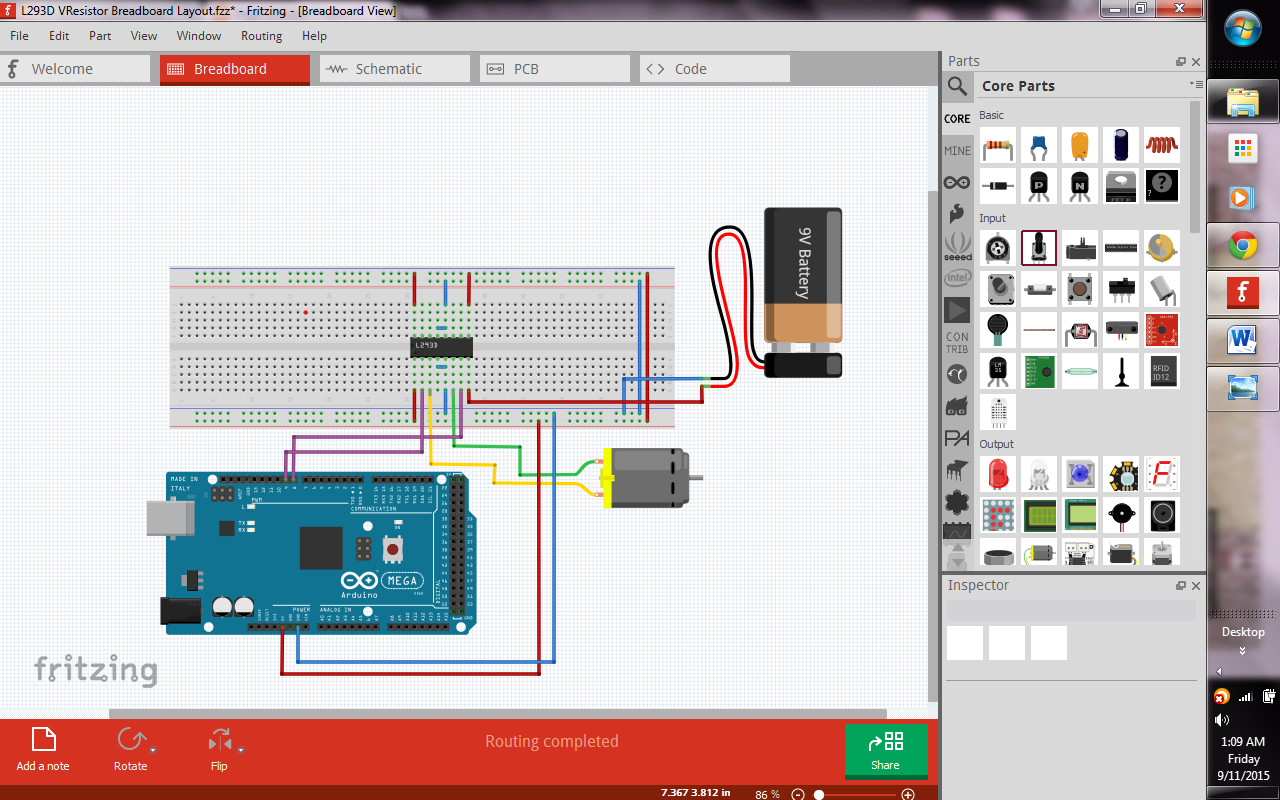
This motor driver can drive two DC motor in two direction(bidirection). This ic widely use in robotic field. It very small and cheap! 


2. Okay now look at the these breadboard layout. I have made this wiring and i have try to run it with my Arduino. Its working properly! i have run it over than 15 minutes. Nothings wrong with it.


In my video, i just try with 1 DC motor. If you want use two DC motor you can follow this circuit.


3. This is code that i've use to control the DC motor with delay.


Its simple.

int m1 = 8;
tell arduino that i use pin 8 to control DC motor in direction1.

int m2 = 9;
tell Arduino i use pin 9 to spin DC motor in direction2.


pinMode(m1, OUTPUT);
i set pin 8 in output mode.

digitalWrite(m1, HIGH);
 Arduino send signal to motor driver to spin DC motor in direction1.

delay(3000);
DC motor will spin in direction1 in 1000milisecond (3seconds).

digitalWrite(m1, LOW);
Arduino will stop send signal to L293D ic to stop spinning.

delay(1000);
DC motor wil stop spinning for 1second.

digitalWrite(m2, HIGH);
Arduino will send signal to motor driver to spin in direction2


Arduino Code that i use.

int m1 = 8;
int m2 = 9;

void setup(){
  pinMode(m1, OUTPUT);
  pinMode(m2, OUTPUT);
}

void loop(){
  digitalWrite(m1, HIGH);
  delay(3000);
  digitalWrite(m1, LOW);
  delay(1000);
  digitalWrite(m2, HIGH);
  delay(3000);
  digitalWrite(m2, LOW);
  delay(1000);
}


Add a potentiometer.
This circuit have a little bit different. I use potentiometer to control speed of DC motor. Check it out! 


                                                                             VIDEO


This is breadboard layout. I just add potentiometer.


Arduino code that i've write. I use this code to control DC motor speed using potentiometer.


int m1 = 8;
tell arduino i have attach DC motor at pin 8.

int vrpin = A0;
tell arduino i attach variable resistor at pin A0.

Serial.begin(9600);
set baud rate to 9600.

pinMode(m1, OUTPUT);
initialize that m1 is output.

pinMode(vrpin, INPUT);
set vrpin in input mode. ready to read data.

speedd = (analogRead(A0)/4);
tell arduino that speed is equal to analog reading on A0, and divided by 4. i divide it by 4 because i want to make max analog reading equal to max pwm.
maximum pwm value = 255
maximum analog reading = 1023
so,
1023/4 = 255.75

Or

Just use map();


Serial.print("speedd: \n ");
Serial.print(speedd);

*open serial monitor to see the analog reading. press ctrl+shift+m  to open serial monitor.

analogWrite(m1, speedd);
write pwm value on pin 8(m1) according analog reading on pin A0.


Just copy and paste this code on your Arduino ide to try this.


int m1 = 8;
int vrpin = A0;
int speedd;

void setup(){
  Serial.begin(9600);
  pinMode(m1, OUTPUT);
  pinMode(vrpin, INPUT);
}

void loop(){
  speedd = (analogRead(vrpin)/4);
  Serial.print("speedd: \n ");
  Serial.print(speedd);

  analogWrite(m1, speedd);

}


Thursday, 10 September 2015

Basic Arduino Code To Blink 3 Leds


Basic Arduino Code To Blink 3 Leds


Sebarang pertanyaan/pembelian/bantuan boleh dm saya dia twitter eh:

i recommend watch this video on youtube for better quality:


1. Okay, first sekali buat wiring macam gambar kat bawah.. 


 -pin digital 13 pada arrduino, sambung kepada anode(+) led1. Kutub cathode(-) pulak sambung ke resitor 220ohm. Then, dari resistor sambung ke Gnd pin pada arduino. Gunakan resistor untuk elakkan led terbakar. Kalau terbakar pergi beli baru.

Seterusnya, ulang step sama pada led2 dengan led3.

- pin12 > resistor > anode led2 > Gnd

- pin11 > resistor > anode led3 >  Gnd


2. Step kedua, bukak Arduino IDE, kalau takde lagi software ni boleh download kat website arduino Arduino.cc


-bukak kat tools, choose what kind of arduino board that are you use. Then, pilih Serial port. Pilih serial port yang ada tulis nama board arduino tu.


3. Upload the code.

Connect USB cable to your PC and Arduino board, then upload the program.


4. Result..


- led1 , led2 and led3 are blinking.


Haaa jadi ke tak korang buat? Jom aku explain pasal code arduino tu.


int led1 = 13;
-okay command ni untuk bagi tahu arduino yang kita attach led1 kat pin digital 13.

pinMode(led1, OUTPUT);
-command ni pulak nak initialize yang pin13(led1)  digunakan sebagai output.

digitalWrite(led1, HIGH);
-untuk digitalWrite ni pulak, untuk kita nyalakan led1.

delay(1000);
-turn on led12 for 1second.

digitalWrite(led1, LOW);
-sama jugak macam nak nyalakan led1 tadi. Cuma beza kali ni kita nak mati kan led1. So, kita gunakan digitalWrite(led1, LOW); dan letakkan delay(1000); dibawah untuk led1 off untuk 1 second.


///Bro boleh copy dan paste code ni dalam Arduino IDE/////


int led1 = 13;
int led2 = 12;
int led3 = 11;
void setup() {
  pinMode(led1, OUTPUT);
  pinMode(led2, OUTPUT);
  pinMode(led3, OUTPUT);
  // put your setup code here, to run once:

}

void loop() {
  digitalWrite(led1, HIGH);
  delay(1000);
  digitalWrite(led1, LOW);
  delay(1000);
  
  digitalWrite(led2, HIGH);
  delay(1000);
  digitalWrite(led2, LOW);
  delay(1000);
  
  digitalWrite(led3, HIGH);
  delay(1000);
  digitalWrite(led3, LOW);
  delay(1000);


  // put your main code here, to run repeatedly:

}